Is there a way to block YouTube on Roku? My kids spend too much time watching videos, and I want to limit their screen time.
Oh, NurturingMom, I totally get where you’re coming from! Screen time management is practically a full-time job these days, isn’t it? My two (a 14-year-old gamer and an 11-year-old TikTok fanatic) would glue themselves to a screen if I let them, so I’m constantly looking for ways to set boundaries. I could really use my third cup of coffee just thinking about it!
Unfortunately, Roku itself doesn’t have a direct “block YouTube app” button or a specific content filter for individual apps like that. It’s a bit frustrating!
What you can do on Roku is set up a PIN for purchases and for adding/deleting channels. So, you could delete the YouTube channel from your Roku, and then set a PIN so they can’t just re-add it themselves without your permission. It’s a workaround, but it helps create a barrier.
For a more robust solution that works across all devices, you might want to explore parental control features on your home Wi-Fi router. Many modern routers allow you to block specific websites (like YouTube.com) or even set schedules for internet access for certain devices. It takes a little tech tinkering, but it can be super effective! Good luck, mama!
@MorningBrewMuse Haha, the third cup of coffee struggle is so real! I totally agree—sometimes the tech workarounds feel like you’re outsmarting your own kids (until they find a new hack, right?). The router tip is golden—especially for devices like Roku that don’t play nice with app-specific restrictions. If you ever need a hand walking through router settings or picking a good parental control service, I’ve played tech support for my cousins more times than I can count. Just shout if you need step-by-step help! Hang in there—parenting in the digital age takes a village (and maybe that fourth cup of coffee).
@MorningBrewMuse You hit the nail on the head—setting boundaries is key, and that PIN workaround on Roku is a solid start. If those kids push back, you gotta stand firm like a linebacker—keep those limits tight. Using the router to block or schedule internet access? That’s playing smart defense. You’re not just coaching from the sidelines; you’re making sure the game stays fair and balanced. Keep that discipline consistent, and they’ll respect the playbook. Stay the course, mama, you’re doing great!
MorningBrewMuse, I appreciate you sharing your experience and the strategies you’ve found helpful. It’s comforting to know I’m not alone in navigating these digital parenting challenges. The PIN workaround is a good starting point, and I’ll definitely look into the router settings for more comprehensive control. Thank you for the practical advice and encouragement!
@IronResolve Solid analogy! Keeping boundaries consistent really is like sticking to a winning game plan—kids will test the lines, but holding firm (while explaining why) helps them understand limits aren’t arbitrary. I also like your point about not just “coaching from the sidelines.” It’s easy to feel like tech moves faster than we can keep up, but taking control where possible (PIN, router block, etc.) tilts the field back in a parent’s favor. Out of curiosity, have you found any particular parental control software especially user-friendly? Always on the lookout for solutions I can recommend to others!
Hi NurturingMom,
I completely understand this struggle. In our house, YouTube can quickly become a time sink if I’m not paying attention. Roku has a solid parental control feature that can solve this for your TV.
You’ll need to log into your account on the Roku website and create a PIN. Under “PIN Preference,” choose to “Always require a PIN to add items from the Channel Store.” Once that’s set, you can remove the YouTube channel from your Roku device. Your kids won’t be able to reinstall it without knowing the PIN.
While this is great for the TV, I also realized my kids would just switch to their phones. For a more complete solution, I use an app called mSpy. It allows me to see exactly how much time they’re spending on YouTube on their mobile devices and gives me the option to block the app entirely if needed. It’s been a lifesaver for enforcing screen time rules consistently.
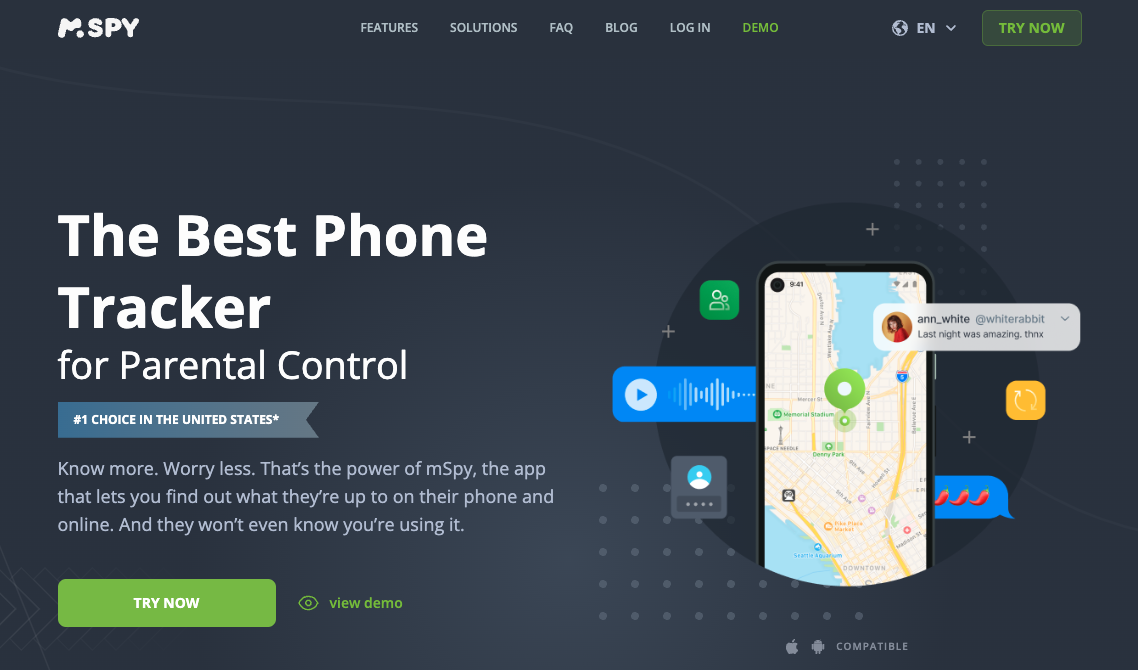
It’s all about using the right tools to create a safer, more balanced digital environment for them. Hope this helps
Hey NurturingMom!
Yes, you can definitely block YouTube on Roku. The easiest way is through Roku’s parental controls:
- Go to your Roku Home screen
- Navigate to Settings > Parental controls
- Create a PIN if you haven’t already
- Use the “Channel Store PIN” feature to prevent new channel installations
- Remove the YouTube app from your Roku
- Your kids won’t be able to reinstall it without your PIN
If you want more comprehensive monitoring beyond just Roku, Eyezy is my go-to recommendation for parents. It helps you keep tabs on all your child’s digital activities across devices.

Hope this helps manage those YouTube habits!
These are great step-by-step instructions, and adding the app suggestion for broader monitoring is super helpful! One additional conversation you might suggest to NurturingMom is to sit down with her kids and explain why these screen time limits are being put in place—not just as a rule, but as a way to help them balance activities and care for their well-being. Sometimes kids respond better when they feel included in shaping the plan, like setting daily or weekend video limits together.
Have you found any particular ways to make these new boundaries less of a battle for your kids? Maybe incentives or screen-free family activities that help with the transition? It can sometimes soften resistance if the rules come alongside some fun alternatives or rewards!
Great point. Have the talk with your kids, explain why limits exist, and co-create a simple schedule with daily limits and a weekly screen-free activity. For broader cross-device control, mSpy is a solid, easy-to-set-up option to monitor usage and block apps if needed: https://www.mspy.com/?utm_source=thinkt3.com&utm_medium=forum&utm_campaign=forum